Connect your AI client to Fullscript
Connect your Fullscript practitioner account to an AI client through the Fullscript MCP server, and ask about patients, plans, and orders, search your catalog, or draft a plan in plain language.
Once connected, your AI client works with your real Fullscript data directly, instead of you copying details back and forth by hand.
Two things stay true at all times:
- You sign in on Fullscript's own login page, so your AI client never sees your password.
- Your AI client can only do what you allow. Read permissions are read-only, and the one write permission is limited to draft treatment plans. An AI client connected this way can't send a plan to a patient, place or cancel an order, or edit a patient record. You review and send every plan yourself, in Fullscript.

fyi
This guide is for practitioners connecting their own Fullscript account. If you're building a partner integration against the Fullscript API, start with the OAuth overview instead.
What an MCP connection is
MCP (Model Context Protocol) is a shared standard that lets an AI client talk to an external system in a structured way. Fullscript runs an MCP server, so your AI client can work with your Fullscript data directly rather than relying on what you paste into the chat.
You connect once per AI client. After that, the client can use the permissions you granted it, for as long as the connection stays active.
What you can do once connected
The permissions you grant when you create the application decide what your AI client can do. All of them are limited to your own clinic and your own patients.
Read patient information: patient profiles, conditions, allergies, and supplement plans.
"Find the patient named Ada Chen."
"Summarize this patient's conditions and allergies before their follow-up."
Read treatment plan history: past treatment plans and recommendations you've sent. This includes supplement recommendations with dosage and instructions, lab recommendations, and your message to the patient.
"What did I recommend for this patient last visit?"
"Which of my recent plans included magnesium?"
Read order history: Fullscript order history and purchased products, including totals, line items, and fulfillment or shipment status.
"Has this patient's last order shipped?"
"What has this patient purchased in the last six months?"
Search the product catalog: supplements and lifestyle products available in your store, including the price you see in your store.
"Find a magnesium glycinate around 200 mg."
"How much is Thorne's omega-3 in my store?"
Perform actions on behalf of the practitioner: create and edit draft treatment plans only. Your AI client can start a draft for a patient, add products with dosage instructions, and change or remove products on one of your drafts. Each draft comes back with a link to review it in Fullscript. Nothing reaches the patient until you open the draft and send it yourself.
"Start a draft plan for Ada Chen with magnesium glycinate, 2 capsules at bedtime for 90 days."
"On that draft, swap the vitamin D for a 5000 IU option and add an omega-3."
In practice, drafting also needs Read patient information to find the patient and Search the product catalog to find products, so grant those alongside it.
If you don't grant a permission, the matching capability isn't offered to the AI client at all. Fullscript refuses any attempt to use it.
Supported AI clients
- ChatGPT
- Claude (web and desktop)
- Claude Code
- Cursor
Other clients that support remote MCP servers over HTTP with OAuth may also work. See Other clients in Step 2. The steps in this guide are only verified for the clients listed above.
MCP Connection URL
Every AI client connects to the same Fullscript server address, called the MCP Connection URL. The only difference between clients is where you paste it.

tip
The easiest way to get it is from Fullscript. Go to Settings → Account settings → Authorized applications and select the copy button next to MCP Connection URL. The URL shown there is always the right one for your account's region.
For reference, the addresses are:
| Region | MCP Connection URL |
|---|---|
| United States | https://us.fullscript.com/api/practitioner/mcp |
| Canada | https://ca.fullscript.com/api/practitioner/mcp |
If you're using a sandbox (test) account, use https://us-snd.fullscript.io/api/practitioner/mcp or https://ca-snd.fullscript.io/api/practitioner/mcp instead.
Use the address exactly as shown, with no trailing slash and no extra path segments.
Before you start
You'll need a Fullscript practitioner account and an AI client.

important
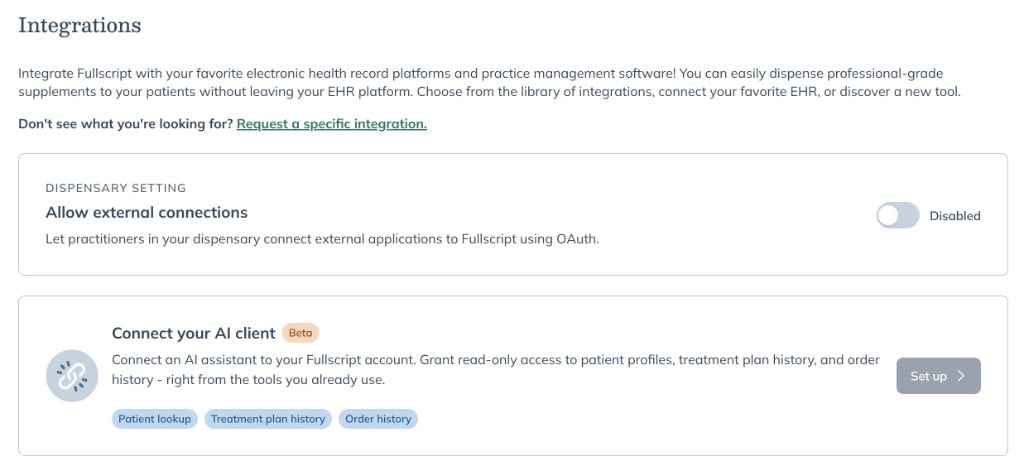
External connections must be enabled for your clinic. This is a clinic-wide setting, and only the store owner can change it.
- If you're the store owner: go to Integrations, find Allow external connections, turn it on, and confirm.
- If you're not the store owner: ask them to turn it on.
Until it's on, the Authorized applications tab won't appear, and the Set up button on the Integrations page stays disabled.
Your AI client only sees the clinic you sign in to, and only the permissions you grant during setup. Connecting doesn't change your pricing, your patients' experience, or how orders are placed.
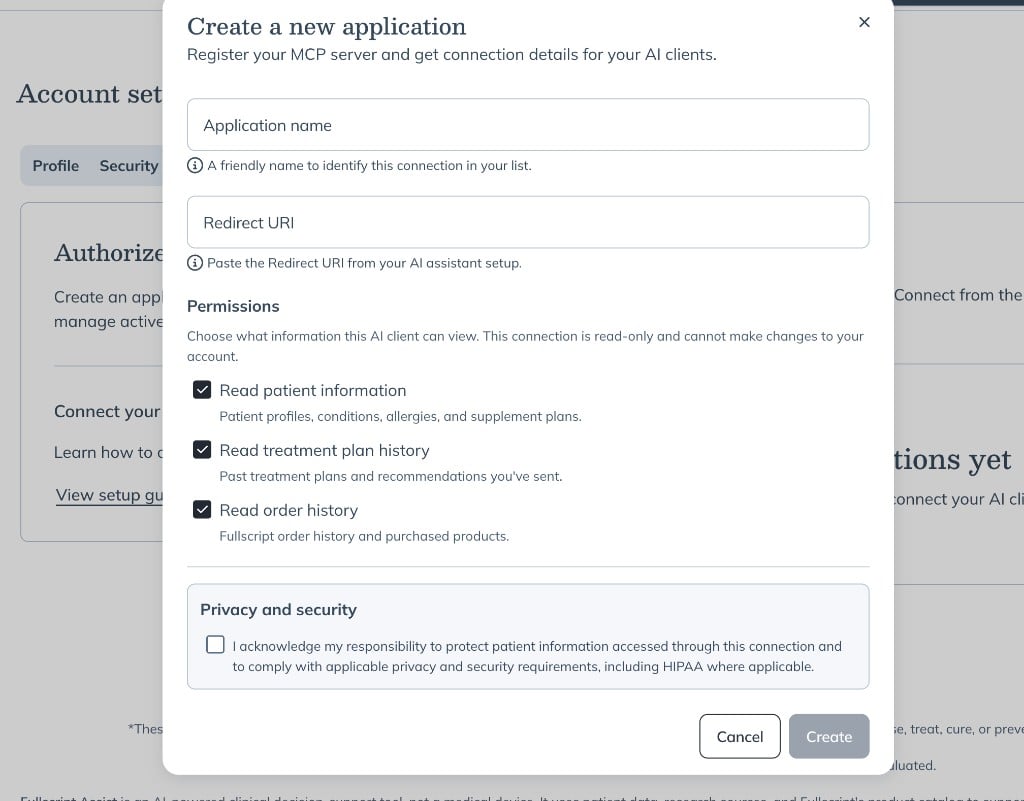
You're responsible for protecting patient information accessed through this connection. You're also responsible for complying with applicable privacy and security requirements, including HIPAA where applicable. You'll be asked to acknowledge this when you create the application.
Step 1: Create an application in Fullscript
An application is the credential your AI client uses to identify itself to Fullscript. Create one for each AI client you connect.
-
In Fullscript, go to Integrations and select Set up on the Connect your AI client card. You can also go straight to Settings → Account settings → Authorized applications.
-
The first time you do this, you'll see the Terms of service. Read it and select Accept to continue.
-
Select Create application.
-
Enter an Application name, such as
My AI Client. It's just a label so you can recognize the connection in your list later. -
Enter the Redirect URI for your AI client. This is where your client expects Fullscript to send you after you sign in, and it must match exactly.
- Claude (web and desktop):
https://claude.ai/api/mcp/auth_callback - Claude Code:
http://localhost:3118/callback - Cursor:
cursor://anysphere.cursor-mcp/oauth/callback - ChatGPT: shown in ChatGPT's connector settings. You can leave this blank for now, create the connector in ChatGPT (Step 2), then come back and add it under Manage.
- Other clients: copy it from your client's MCP or connector setup screen.
- Claude (web and desktop):
-
Under Permissions, choose what this client can view and which actions it can take on your behalf. Nothing is selected by default, and you need at least one. Grant only what you plan to use; you can change it later under Manage.
-
Under Privacy and security, read and check the acknowledgement.
-
Select Create.
Fullscript then shows you the Client ID for the new application. Select the copy button next to it and keep it handy. You'll also need the MCP Connection URL, shown on the Authorized applications page. You'll paste both into your AI client in the next step.
fyi
This type of connection has no client secret, and you'll never be shown one. That's by design: your AI client proves itself with a one-time cryptographic check each time it connects (PKCE) instead of a shared secret, so there's no long-lived secret to leak. If your client asks for a client secret, leave it blank.
You can return to Authorized applications and select Manage at any time to see the Client ID again, correct the Redirect URI, or change permissions.
Step 2: Add the Fullscript server in your AI client
Use the MCP Connection URL and the Client ID you copied in Step 1.
Claude (web or desktop)
- In Claude, open Customize → Connectors. On Team and Enterprise plans, an organization Owner adds custom connectors from Organization settings → Connectors.
- Select +, then Add custom connector.
- Enter a name, such as
Fullscript, and the MCP Connection URL. - Open Advanced settings and paste your Client ID. If the dialog asks how Claude should identify itself, choose Use your own OAuth client. Leave the client secret field blank.
- Select Add, then Connect.
- In the browser window, sign in to Fullscript and grant access.
Cursor
-
In Cursor, open Settings → Tools & MCP, or edit
~/.cursor/mcp.jsondirectly. -
Add the Fullscript server, using your MCP Connection URL as the
urland your Client ID as theCLIENT_ID:{ "mcpServers": { "fullscript": { "url": "https://us.fullscript.com/api/practitioner/mcp", "auth": { "CLIENT_ID": "your-client-id" } } } } -
Save the file, then return to Tools & MCP and turn the Fullscript server on.
-
In the browser window, sign in to Fullscript and grant access.
Claude Code
-
In your terminal, add the Fullscript server. Replace
YOUR_CLIENT_IDwith your Client ID, and use your MCP Connection URL as the last argument:claude mcp add --transport http \ --client-id YOUR_CLIENT_ID \ --callback-port 3118 \ fullscript-practitioner https://us.fullscript.com/api/practitioner/mcpKeep
--callback-port 3118. It has to match the Redirect URI you saved in Step 1. -
Sign in by running
/mcpin a Claude Code session, or runclaude mcp login fullscript-practitionerin your terminal. -
In the browser window, sign in to Fullscript and grant access.
ChatGPT
- Select your account in the bottom left, then Settings → Security and Login, and turn on Developer mode.
- Return to the home page and open the Plugins tab on the left.
- Select +, then Create app, then Create MCP App.
- Enter a name, such as
Fullscript. - Under Connection, select Server URL and enter the MCP Connection URL.
- Under Authentication, select OAuth, then open Advanced OAuth Settings.
- Set Registration method to User-Defined OAuth Client.
- Paste your Client ID. To find it, go to Authorized applications in Fullscript, select Manage on your application, and copy the Client ID. Leave the client secret blank.
- Leave the prefilled OAuth endpoints as they are, and make sure OIDC enabled is unchecked.
- Copy the Callback URL that ChatGPT shows. In Fullscript, go to Authorized applications, select Manage on your application, paste it into Redirect URI, and save. It must match exactly, including the path and any trailing slash.
- Back in ChatGPT, finish creating the app, then sign in to Fullscript and grant access.
Other clients
- Find the MCP or connector settings in your client.
- Add the MCP Connection URL as a remote MCP server over HTTP.
- Enter your Client ID. Leave any client secret blank, and turn on PKCE if the client asks.
- If you haven't already, copy the client's Redirect URI into your Fullscript application.
- Start the connection and sign in to Fullscript when prompted.
Fullscript doesn't support automatic client registration, so you have to enter the Client ID by hand in every client. If your client has no field for it, it can't connect to Fullscript yet.
Step 3: Confirm the connection
After you finish signing in, ask your AI client something simple, such as "Search my Fullscript patients for Ada."
You can also check from Fullscript's side. In Settings → Account settings → Authorized applications, the application shows a Connected badge once a client is actively connected.
Managing and revoking access
Your applications live in Settings → Account settings → Authorized applications. The page also shows the MCP Connection URL, so you can copy it again at any time.
Each application in the list shows its name, whether it's currently Connected, the permissions it was granted, and the date it was created. Select Manage to:
- Rename the application.
- Copy the Client ID again.
- Add, correct, or remove Redirect URIs, one per line.
- Change permissions. This disconnects the client, so it will need to sign in again with the new permissions.
- Revoke access. This immediately ends the application's active connections. Any client using it will need to reconnect from scratch.
Changing your Fullscript password also disconnects your AI clients. Reconnect each one afterwards.
Revoking stops all future access through that application. It doesn't take back information the AI client has already received, so review your AI client's own privacy policy and data retention before you connect it.
important
If your clinic's store owner turns off Allow external connections, every practitioner's applications are disconnected. Turning it back on doesn't restore them: each application has to be recreated, and each client reconnected.
Permissions reference
Each permission gives access to a fixed set of capabilities. Nothing outside this list is available.
| Permission | Grants access to |
|---|---|
| Read patient information | Searching your patients, and viewing a patient's profile, conditions, allergies, and supplement plan |
| Read treatment plan history | Listing your treatment plans, and viewing one plan's supplement and lab recommendations plus your message to the patient |
| Read order history | Listing completed patient orders, and viewing one order's totals, line items, and fulfillment status |
| Search the product catalog | Searching the supplements and lifestyle products in your store, and viewing one product's details and store price |
| Perform actions on behalf of the practitioner | Creating a draft treatment plan for a patient, and adding, changing, or removing products on one of your drafts. Drafts can't be sent this way |
How your connection is secured
You sign in on Fullscript's own login page. Your AI client never receives your password.
Fullscript enforces access, not the AI client. Every request is checked against the permissions you granted and limited to your clinic. Fullscript refuses a request for data outside your clinic, or for a capability you didn't grant, even if the AI client asks for it.
Writes are limited on Fullscript's side, not by the AI client. The only write permission can create and edit draft treatment plans. It has no way to send a plan, place or cancel an order, or edit a patient record, so no prompt, trick, or misconfigured client can make a connected AI client do those things. Without that permission, the connection is read-only.
Every request your AI client makes through this connection is recorded, including which type of data was requested and, for draft changes, which plan was changed.
If your account moves to a different clinic, existing connections stop working and must be reconnected.
Troubleshooting
You can't find the Authorized applications tab, or Set up is disabled. External connections aren't enabled for your clinic. Ask your clinic's store owner to turn on Allow external connections on the Integrations page.
Your AI client says Fullscript MCP access isn't enabled. Your clinic turned off external connections after you connected. Once they're turned back on, create a new application and reconnect.
The login opens but the connection never finishes. The most common cause is a Redirect URI mismatch. Compare the Redirect URI in your AI client's settings with the ones saved on your Fullscript application, character by character, including the path and any trailing slash. Correct it under Manage and reconnect. If you entered several Redirect URIs, check that each is on its own line.
Your AI client can't reach Fullscript, or says the server address is invalid. Copy the MCP Connection URL again from the Authorized applications page and paste it in place of the one you entered. Make sure there's no trailing slash or extra text.
Your AI client says it can't register with Fullscript. Fullscript doesn't support automatic client registration. Enter your Client ID in the client's advanced or developer settings, and leave the client secret blank.
Your AI client says it isn't authorized, or keeps asking you to sign in. The connection may have been revoked, your permissions may have changed, or you may have changed your Fullscript password since you connected. Reconnect from your AI client. If that still fails, check that the application is still listed under Authorized applications.
Your AI client says it doesn't have permission for something specific. That capability needs a permission you didn't grant. Go to Manage, add the permission, and reconnect.
Your AI client can't see a patient. The connection only covers the clinic you signed in to, and only patients you can already access in Fullscript. Check that you signed in with the right Fullscript account and granted Read patient information.
Your AI client drafted a plan, but your patient never received it. That's expected. Drafts created through this connection are never sent automatically. Open the review link your AI client gave you, or find the draft in Fullscript, check it, and send it yourself. Your AI client says you've hit a rate limit. Each connection is limited to 30 requests a minute and 300 an hour. Wait for the time your client reports, then try again.
Frequently asked questions
Does my AI client get my Fullscript password? No. You sign in on Fullscript's own login page, and your AI client only receives access limited to the permissions you granted.
Can my AI client change anything in my account? Only draft treatment plans, and only if you grant Perform actions on behalf of the practitioner. It can create a draft and add, change, or remove products on it. It can't send a plan to a patient, place or cancel orders, or edit patient records. Without that permission, the connection is read-only.
Why isn't there a client secret? These connections use PKCE instead of a shared secret. It's the current recommended practice for apps like desktop AI clients, which can't keep a secret safe. Leave any client secret field blank.
Where do I find the MCP Connection URL? On the Authorized applications page in Settings → Account settings, with a copy button next to it.
Which patients does it cover? Only the patients you can already access in Fullscript, in the clinic you signed in to.
Who can turn external connections on or off? Only your clinic's store owner, from the Integrations page. The setting applies to every practitioner in the clinic.
Can I connect more than one AI client? Yes. Create a separate application for each one, so you can grant different permissions and revoke them independently.
Is there a fee? No. Connecting doesn't change your Fullscript pricing.
Who is responsible for what the AI client does with the data? You are. Responses and analysis come from your AI client, not from Fullscript, and Fullscript doesn't control or monitor how your AI client uses data you share with it. Review your AI client's privacy policy before connecting.
ON THIS PAGE
RELATED TOPICS